


You can clone this repo and update your credentials to run locally.
Google Cloud Run is GCP’s serverless container platform. The ComputeSDK Cloud Run provider runs isolated commands and filesystem operations inside Cloud Run, in one of two modes: remote mode, connecting to a deployed gateway service, or direct mode, driving the in-container sandbox CLI from inside a Cloud Run service deployed with --sandbox-launcher.
Let’s walk through the process of creating a Cloud Run sandbox using remote mode, the more approachable path if you don’t already have a --sandbox-launcher service deployed.
Why use Cloud Run as your sandbox provider?
- Runs sandboxed commands on Google Cloud Run, GCP’s serverless container platform.
- Two execution modes: ephemeral one-off commands, or stateful sandboxes you can exec into repeatedly.
- A good fit if your infrastructure is already built around Cloud Run and
gcloud.
A note before you start: Cloud Run sandboxes don’t support
getUrl()— it throws, since the sandbox CLI doesn’t expose per-sandbox ports.filesystemoperations are fully supported. This guide sticks torunCommandandfilesysteminstead of a live browser preview.
Let’s see how we can create a Cloud Run sandbox in remote mode and run commands inside it.
Let’s start by creating a new Next.js project
Run this command in your terminal:
npx create-next-app@latest cloud-run-basicYou can use all of the defaults when prompted.
Create an .env file
Once it has been created, be sure to create an .env file to add your necessary credentials to.
CLOUD_RUN_SANDBOX_URL=https://your-gateway-xyz.run.app
CLOUD_RUN_SANDBOX_SECRET=your_shared_secret
Install ComputeSDK and the Cloud Run provider
ComputeSDK ships as a small core package plus one package per provider, so you only install what you use.
cd cloud-run-basic
npm install computesdk @computesdk/cloud-run
Set up your Cloud Run gateway service
Remote mode connects to a deployed Cloud Run gateway service rather than to a per-request API key — you’ll need one deployed first. Follow Google’s Cloud Run sandboxes documentation to deploy a gateway service, then gather:
- Gateway URL: the
*.run.appURL of your deployed gateway service. - Shared secret: the bearer token your gateway service expects (
CLOUD_RUN_SANDBOX_SECRET).
Save these values in your .env file.
CLOUD_RUN_SANDBOX_URL=https://your-gateway-xyz.run.app
CLOUD_RUN_SANDBOX_SECRET=your_shared_secret
If your gateway service requires IAM-authenticated access, also set
CLOUD_RUN_AUTH_TOKENto a Google-signed identity token.
Now we’ll move on to creating the actual sandbox logic
We need to create the API route to create the sandbox
Import the cloudRun factory from @computesdk/cloud-run and pass it your gateway credentials. Remote mode is selected automatically whenever both sandboxUrl and sandboxSecret are set.
Create a new route.ts file in app/api/sandbox and paste the following code:
// app/api/sandbox/route.ts
import { NextResponse } from 'next/server';
import { cloudRun } from '@computesdk/cloud-run';

const compute = cloudRun({
  sandboxUrl: process.env.CLOUD_RUN_SANDBOX_URL,
  sandboxSecret: process.env.CLOUD_RUN_SANDBOX_SECRET,
});

export async function POST() {

  const sandbox = await compute.sandbox.create();

  return NextResponse.json({
    sandboxId: sandbox.sandboxId,
  });
}
Next, we’ll edit the page.tsx file
We’ll keep it simple and just add one button to run our sandbox test with.
Replace the content on Page.tsx with this code:
// app/page.tsx
'use client';

export default function Home() {
  const createSandbox = async () => {
    const res = await fetch('/api/sandbox', { method: 'POST' });
    const data = await res.json();
    console.log(data);
  };

  return (
    <div className="flex min-h-screen flex-col items-center justify-center p-24">
      <h1 className="mb-8 text-4xl font-bold">ComputeSDK Sandbox Test</h1>
      <button
        className="rounded bg-blue-500 px-4 py-2 font-bold text-white hover:bg-blue-700"
        type="button"
        onClick={createSandbox}
      >
        Create Cloud Run sandbox
      </button>
    </div>
  );
}
Now, our first test
Run npm run dev in your terminal to start the dev server.
Open localhost:3000
Click the button on the main page.
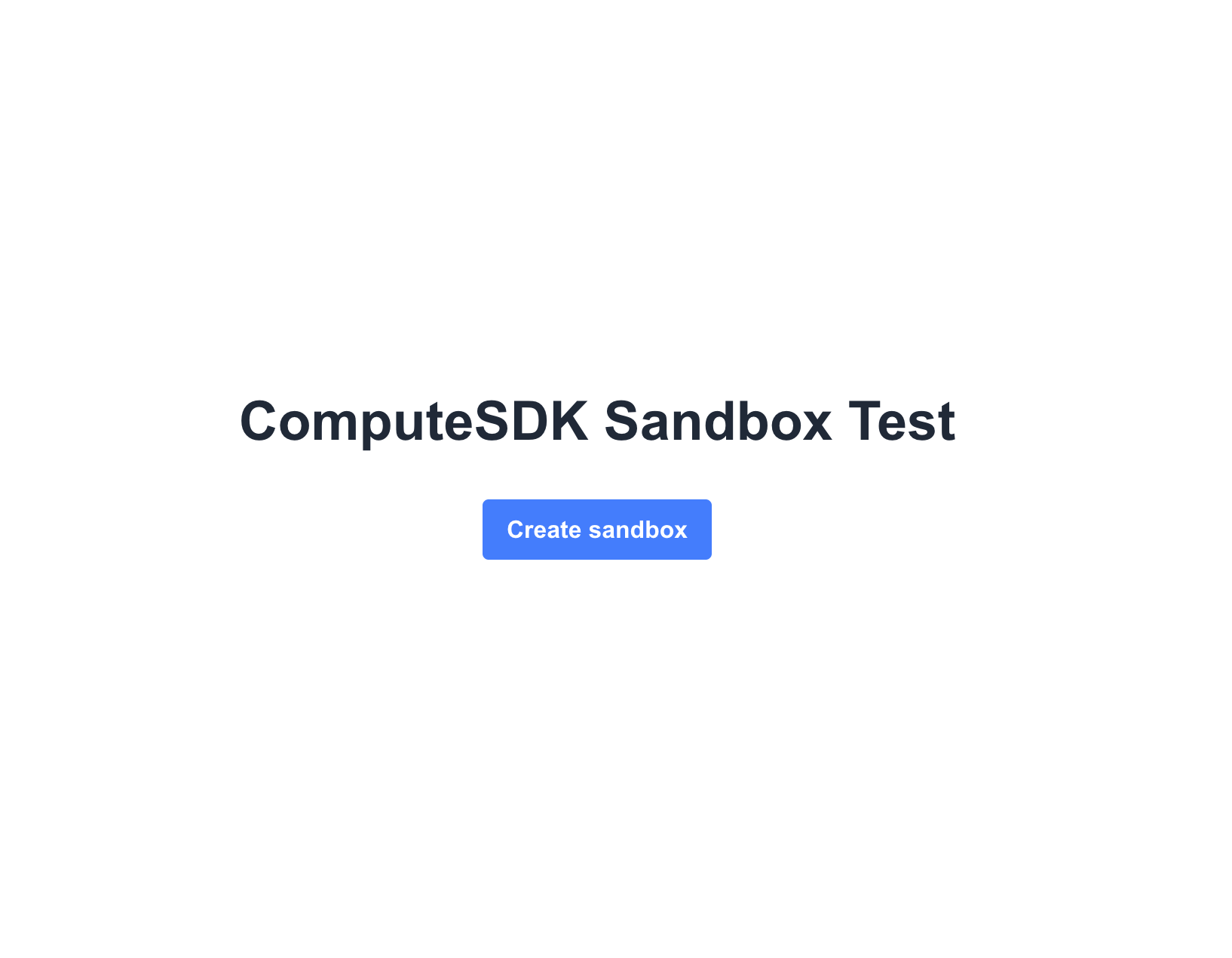
Check your terminal output — you should see a sandboxId logged for the new sandbox handle.
Success!
You’ve successfully created your first Cloud Run sandbox
If you want to use another sandbox provider like E2B or Daytona, swap the import and factory call — install @computesdk/e2b and use import { e2b } from '@computesdk/e2b' instead, with that provider’s own credentials. The rest of your code (runCommand, filesystem) stays the same — that’s the point of the universal Sandbox interface.
Making changes within the sandbox
Now let’s run a command and write a file inside the sandbox. By default Cloud Run sandboxes are ephemeral — each call creates a local logical handle, and runCommand uses sandbox do. If you need to exec into the same sandbox repeatedly, set executionMode: 'stateful' in your config instead.
Update /api/sandbox/route.ts
Add the following to your app/api/sandbox/route.ts file directly below this in your code:
const sandbox = await compute.sandbox.create();Write a file with the filesystem method
await sandbox.filesystem.writeFile('/tmp/hello.txt', 'Hello from Cloud Run!');Read it back with runCommand
const result = await sandbox.runCommand('cat /tmp/hello.txt');
console.log(result.stdout); // "Hello from Cloud Run!"
Return the output along with the sandboxId
return NextResponse.json({
  sandboxId: sandbox.sandboxId,
  output: result.stdout,
});
Finished route.ts file
Your /app/api/sandbox/route.ts file should look like this now:
import { NextResponse } from 'next/server';
import { cloudRun } from '@computesdk/cloud-run';

const compute = cloudRun({
  sandboxUrl: process.env.CLOUD_RUN_SANDBOX_URL,
  sandboxSecret: process.env.CLOUD_RUN_SANDBOX_SECRET,
});

export async function POST() {

  const sandbox = await compute.sandbox.create();

  // Write a file
  await sandbox.filesystem.writeFile('/tmp/hello.txt', 'Hello from Cloud Run!');

  // Read it back
  const result = await sandbox.runCommand('cat /tmp/hello.txt');
  console.log(result.stdout); // "Hello from Cloud Run!"

  return NextResponse.json({
    sandboxId: sandbox.sandboxId,
    output: result.stdout,
  });
}
Testing it out
Now, after you click the “Create Cloud Run Sandbox” button on your localhost homepage you should:
- See a
sandboxIdlogged in your terminal. - See
Hello from Cloud Run!logged and returned in the JSON response.
There’s no live browser preview in this guide — Cloud Run sandboxes don’t expose per-sandbox ports through the sandbox CLI. If your use case needs a live preview, E2B, Daytona, CodeSandbox, Blaxel, Hopx, Runloop, or Modal are all better fits today.
Congrats! You’ve successfully created your first sandbox application
You have done the following:
- created a Cloud Run sandbox with ComputeSDK, in remote mode against your own deployed gateway
- used our runCommand and filesystem methods (these work with any provider that supports them)
- confirmed what Cloud Run sandboxes do and don’t support today (no
getUrl, ephemeral by default)
ComputeSDK makes it easy to standardize this process across providers.
So now that you’ve written this code for Cloud Run, you can easily adjust this code to run in any sandbox provider — and if you need a live preview URL, swapping to a provider that supports it is a one-line import change.
Happy Sandboxing!
Want to get sandboxes running in your application?
Want to be added as a provider?
Reach out to us at [email protected]