How to run a Sail sandbox (via web, CLI, API, or AI agent)
Create a Sail sandbox in one command, with no Sail account or API key. Or use the dashboard, an AI agent, the API, or the SDK. Median burst TTI 1,907 ms in our Nov 20, 2026 benchmark.

David Tice
Head of Product ·
Sail runs Sailboxes: isolated Firecracker microVM sandboxes with command execution, native filesystem operations, and public HTTP or TCP listeners.
You don't need a Sail account, provider SDK, or API key to use it. ComputeSDK runs Sail sandboxes on its managed Sail account and bills them from your ComputeSDK credit. Sign up once, and you can create a Sail sandbox from the dashboard, your terminal, an AI agent, a REST call, or a few lines of TypeScript. If you already have a Sail account, you can bring your own key too.
- Dashboard: open Sandboxes → New sandbox and pick Sail.
- CLI: run
npm create sailorcompute new sail. - MCP: connect Claude, ChatGPT, or another agent to
https://platform.computesdk.com/mcp. - REST API: call
POST /api/v1/sandboxesfrom any language. - SDK:
import { compute } from 'computesdk'in a TypeScript app.
How Sail performs
ComputeSDK benchmarks Sail alongside every other sandbox provider on the same hardware and schedule. Its current results, as of November 20, 2026:
- Sandbox Provider Ratings: ranked #21 of 35
- Burst TTI: 1,907 ms median TTI, ranked #27 of 30
- DAX (dev loop): 73.7 s median dev loop, ranked #17 of 36
- Reliability: 99.997% uptime, ranked #17 of 32
See every result on the Sail provider page. Browse the burst TTI, DAX and reliability leaderboards.
Popular comparisons: Sail vs Agent37, Sail vs Archil, Sail vs Arker.
Before you start
Create an account at platform.computesdk.com with Google, GitHub, or email. Your account comes with an organization, and every sandbox you create belongs to it.
Sandboxes on ComputeSDK's managed Sail account are billed per second from your prepaid credit, which you can add under Settings → Billing. You only pay Sail directly if you bring your own key.
1. Create a sandbox in the dashboard
- Sign in to platform.computesdk.com and open Sandboxes in the sidebar.
- Click New sandbox.
- Under Size, pick how much CPU and memory you want.
- Under Routing, pick Sail.
- Click Create sandbox.
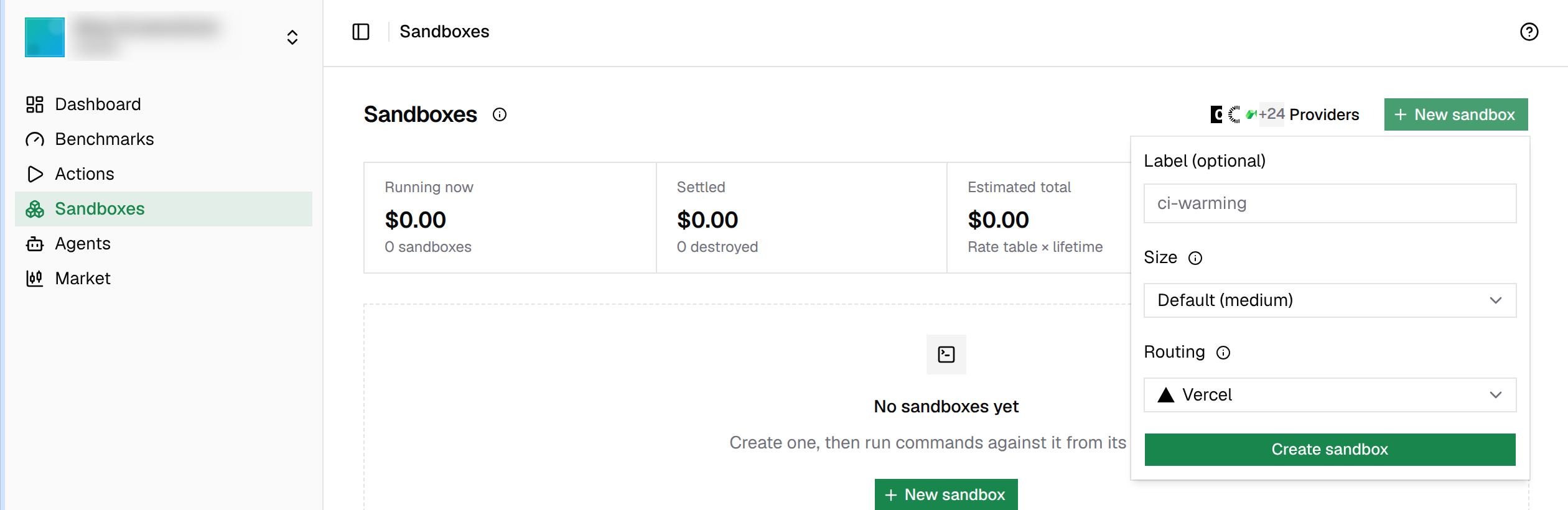
The new sandbox appears in the Sandboxes list, and you can destroy it from there when you're done.
These sizes were available on the managed Sail account when we wrote this. The dashboard always shows the current list and the price for each one.
small: 1 vCPU · 16 GBmedium: 2 vCPU · 16 GBlarge: 4 vCPU · 16 GBxlarge: 8 vCPU · 16 GB2xlarge: 16 vCPU · 32 GB3xlarge: 32 vCPU · 64 GB
2. Create a sandbox from the CLI
The fastest way from a terminal is the Sail starter:
npm create sailIt offers to install the compute CLI if you don't have it, then runs compute new sail for you. The first time, it opens your browser so you can sign in to ComputeSDK and pick your organization. After that, the sandbox is created and ready.
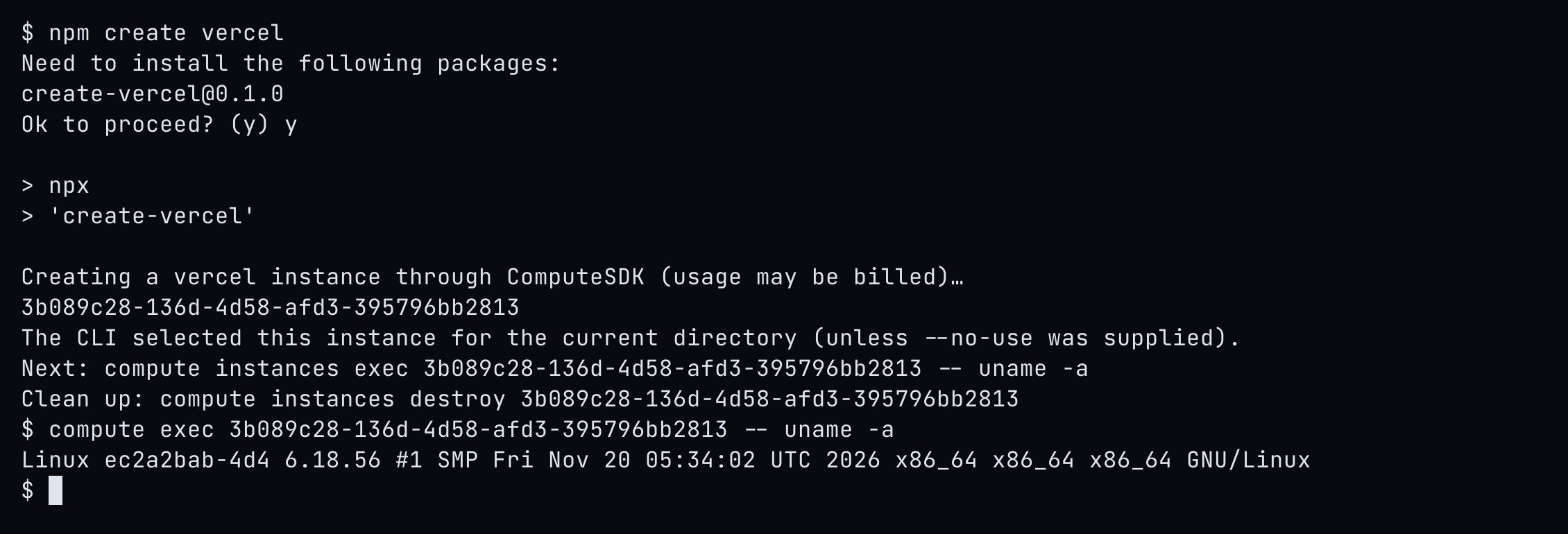
If you already have the CLI, you can do the same in one command:
npm install -g @computesdk/cli
compute new sail
If you aren't signed in yet, compute new opens the browser sign-in first (you can also run compute login yourself). The new sandbox becomes the current sandbox for your directory, so the next commands don't need its ID:
compute exec echo hello   # run a command
compute list              # see your sandboxes
compute destroy           # stop it and stop billing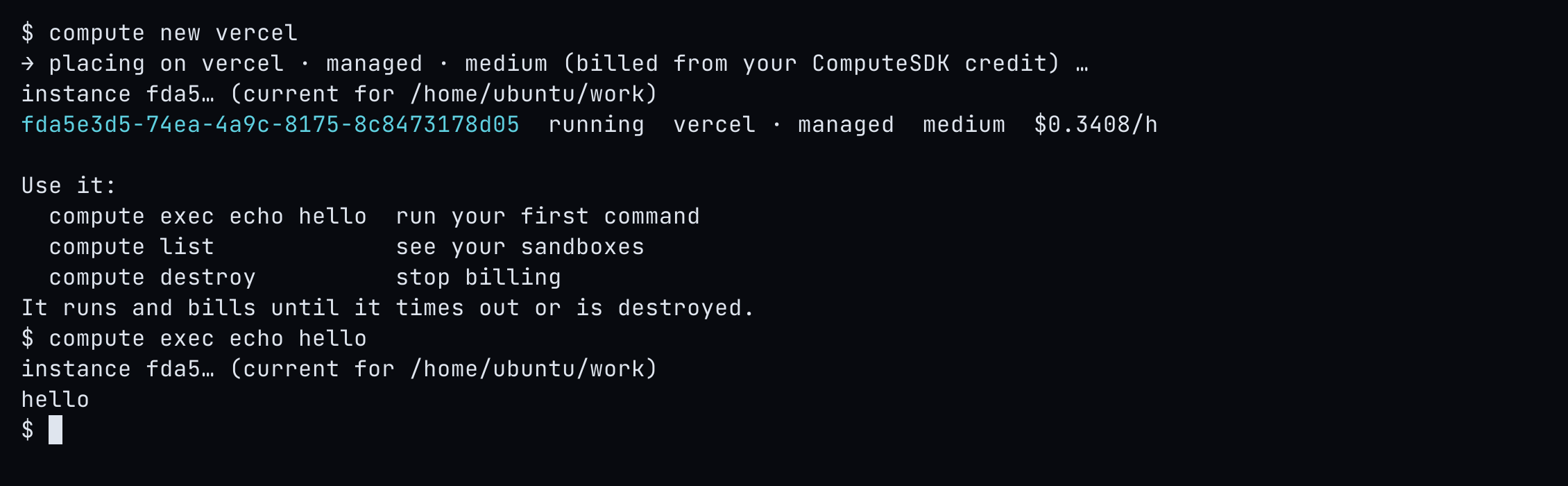
Run compute new sail . to also copy your current project into the sandbox at /app.
3. Let an AI agent create it over MCP
ComputeSDK has a remote MCP server, so an AI agent can create and use sandboxes for you. Connect it to your agent:
- Claude (web and desktop): go to Settings → Connectors → Add custom connector and enter
https://platform.computesdk.com/mcp, or add ComputeSDK Router from the connectors directory. - Claude Code: run
claude mcp add --transport http computesdk https://platform.computesdk.com/mcp. - ChatGPT: install the ComputeSDK Router app from the ChatGPT apps directory.
- Any other MCP client: point it at
https://platform.computesdk.com/mcp.
The first time the agent uses a tool, a ComputeSDK sign-in opens in your browser. Sign in with OAuth, choose the organization the agent should use, and approve the permissions. That's it. Now ask for what you want:
Create a Sail sandbox, run
node -vin it, and destroy it when you're done.
The agent creates the sandbox, runs commands, reads and writes files, starts servers, and shares a public preview URL for a port, all through ComputeSDK. Nothing runs on your computer. To disconnect, remove the app under Settings → Connected Apps.
4. Create a sandbox with the REST API
For direct calls from any language, use an organization API key:
- Sign in to the platform and open Settings → API Keys.
- Create a key and copy it. It is shown only once.
- Export it in your shell:
export COMPUTE_API_KEY="your_org_api_key"Create a Sail sandbox:
curl https://platform.computesdk.com/api/v1/sandboxes \
  -H "Authorization: Bearer $COMPUTE_API_KEY" \
  -H 'Content-Type: application/json' \
  -d '{"only":["sail"],"size":"small"}'
only limits this create to Sail. The response's sandbox.id is what you use in the next calls. Run a command, then destroy the sandbox:
curl https://platform.computesdk.com/api/v1/sandboxes/$SANDBOX_ID/commands \
  -H "Authorization: Bearer $COMPUTE_API_KEY" \
  -H 'Accept: application/json' \
  -H 'Content-Type: application/json' \
  -d '{"command":"echo hello"}'

curl -X DELETE https://platform.computesdk.com/api/v1/sandboxes/$SANDBOX_ID \
  -H "Authorization: Bearer $COMPUTE_API_KEY"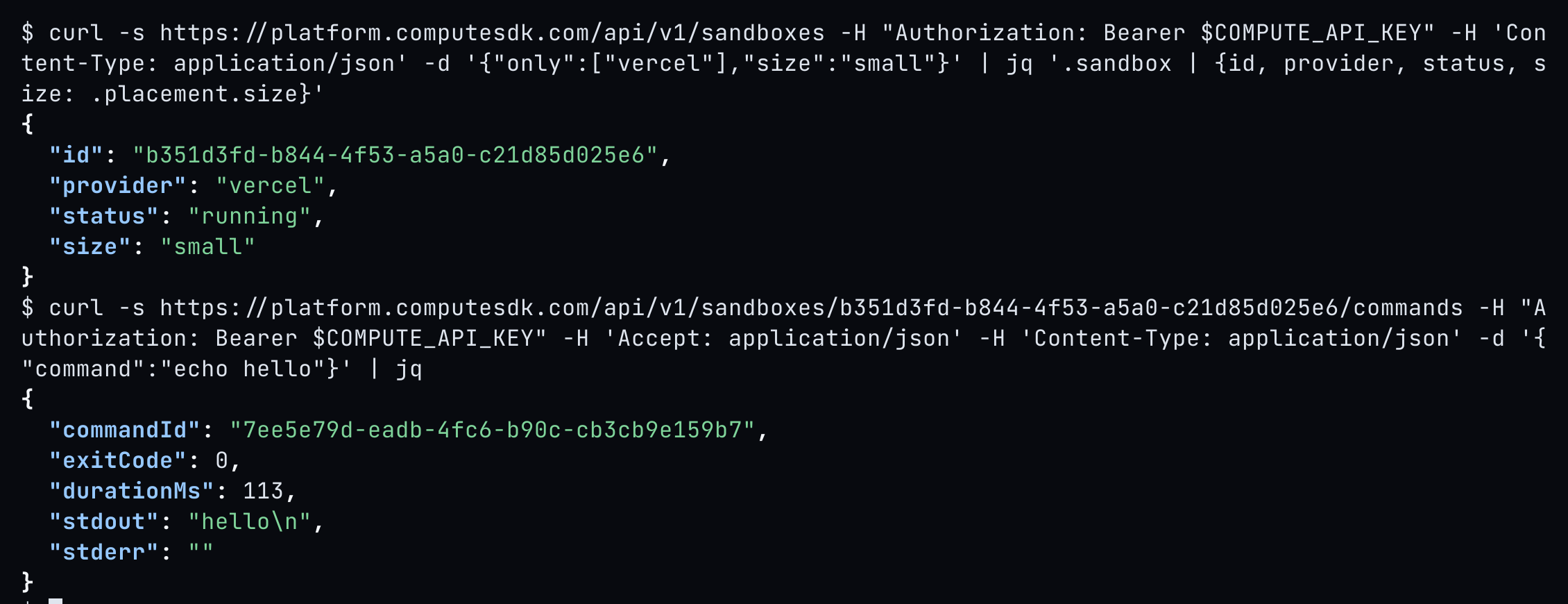
The same API also handles files, background processes, and preview URLs. See the API reference.
5. Create a sandbox with the SDK
In a TypeScript or JavaScript app, install the SDK and use the same API key:
npm install computesdk
export COMPUTE_API_KEY="your_org_api_key"
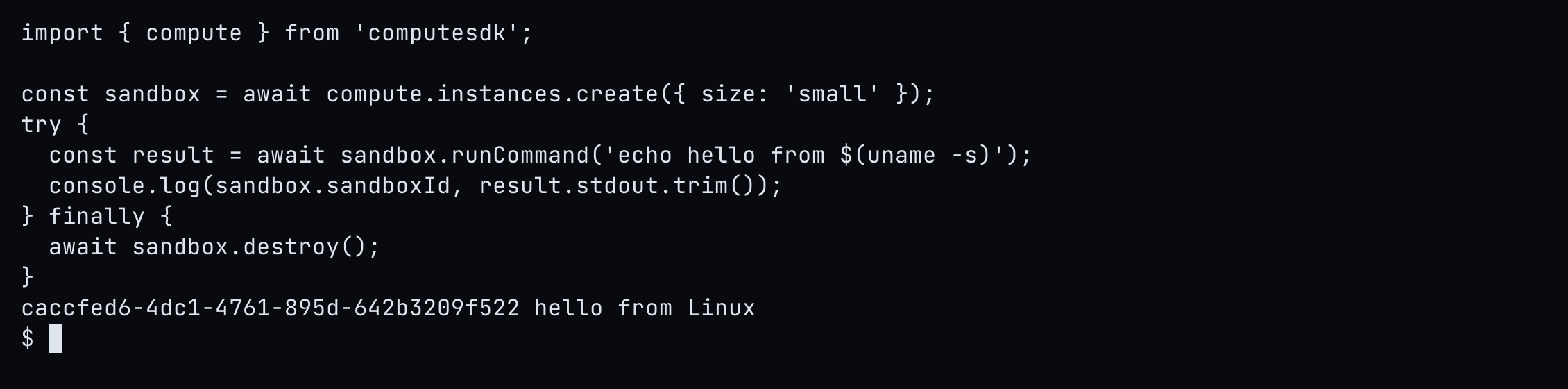
import { compute } from 'computesdk';
const sandbox = await compute.instances.create({
// Follows your routing under Settings → Sandboxes; pick Sail there.
size: 'small',
});
try {
const result = await sandbox.runCommand('echo hello');
console.log(result.stdout);
} finally {
await sandbox.destroy();
}Importing computesdk is all it takes: the SDK reads COMPUTE_API_KEY and talks to the platform, so there is no Sail package or Sail credential in your app. compute.instances.create() follows your organization's saved routing, so pick Sail under Settings → Sandboxes to send sandboxes there. The SDK can't pin a single create to ComputeSDK's managed Sail account; only the routing setting does that. If you've connected your own Sail key, providerOrder: ['sail'] pins one create to that key, with no fallback.
Bring your own key: try it first, or as a fallback
If you already have a Sail account, you can connect its key to ComputeSDK and decide how it is used alongside the managed account. Sandboxes on your own key are billed by Sail, not from your ComputeSDK credit.
- Add your key under Settings → BYOK.
- Open Settings → Sandboxes and set Use BYOK accounts:
- First: try your own keys first, then ComputeSDK's managed accounts.
- Fallback: use managed accounts first, then fall back to your own keys.
- Only: use only your own keys.
- Off: use only managed accounts.
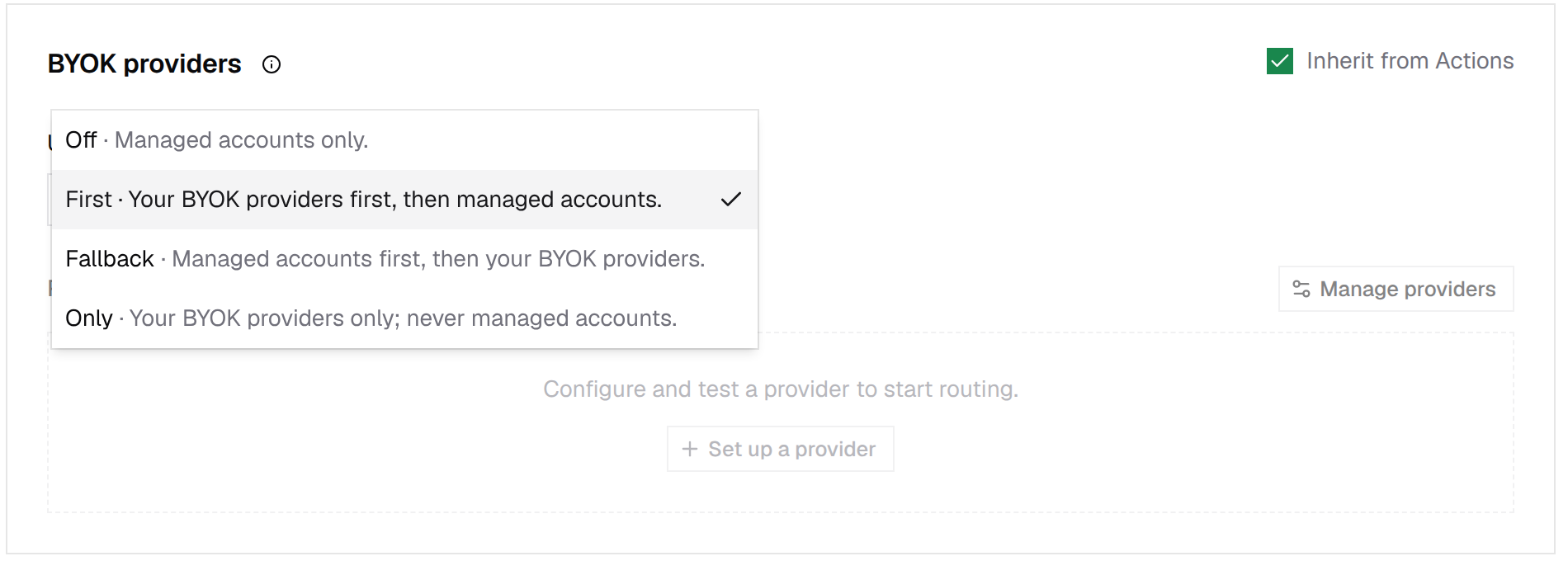
The setting applies everywhere: the dashboard, CLI, MCP, API, and SDK. You can still override it for a single create, for example compute new sail --byok to use your key or compute new sail --managed to use the managed account. From the API, set it with PATCH /api/v1/sandboxes/routing and {"byok":"first"}, or pass byok on a single create.
Next steps
Frequently asked questions
Do I need a Sail account to run a Sail sandbox?
No. ComputeSDK runs Sail sandboxes on its managed Sail account and bills them per second from your ComputeSDK credit. You can also connect your own Sail key.
How do I create a Sail sandbox from the terminal?
Run npm create sail or compute new sail. The first time, the CLI opens your browser so you can sign in to ComputeSDK. Then run commands with compute exec and clean up with compute destroy.
Can an AI agent create Sail sandboxes?
Yes. Connect Claude, ChatGPT, or another MCP client to https://platform.computesdk.com/mcp and sign in with OAuth. The agent can then create a Sail sandbox, run commands, edit files, and destroy it.
Can I use my own Sail key with ComputeSDK?
Yes. Add it under Settings → BYOK, then set Use BYOK accounts under Settings → Sandboxes to First to try your key before managed accounts, or Fallback to use managed accounts first and your key as a backup.