How to run your first E2B sandbox
A step-by-step process for creating a sandbox with E2B, running a basic Vite app inside, and accessing it securely via the browser.

Garrison Snelling
Founder, ComputeSDK ·
It feels like everyone is talking about running code inside of sandboxes these days.
But how do you actually do that?
Let's walk through the process of getting a basic application running inside an E2B sandbox.
Why use E2B as your sandbox provider?
Simple, E2B is a favorite among sandbox providers. Very few can claim a similar level of popularity as E2B.
They have a generous free offering.
They offer plenty of credits to get familiar with sandboxes.
And, they have the most intuitive sandbox management UI (in my opinion).
Let's see how we can easily run a basic Vite app inside of an E2B sandbox.
Let's start by creating a new Next.js project
Run this command in your terminal:
npx create-next-app@latest basic-sandbox-appYou can use all of the defaults when prompted.
Once it has been created, be sure to create an .env file to add your necessary credentials to.
E2B_API_KEY=your_e2b_api_keyCreate an E2B account
Create an E2B account here.
Once you have created an account, you'll need to get your E2B API key.
Go to your dashboard -> API Keys -> "Create Key"
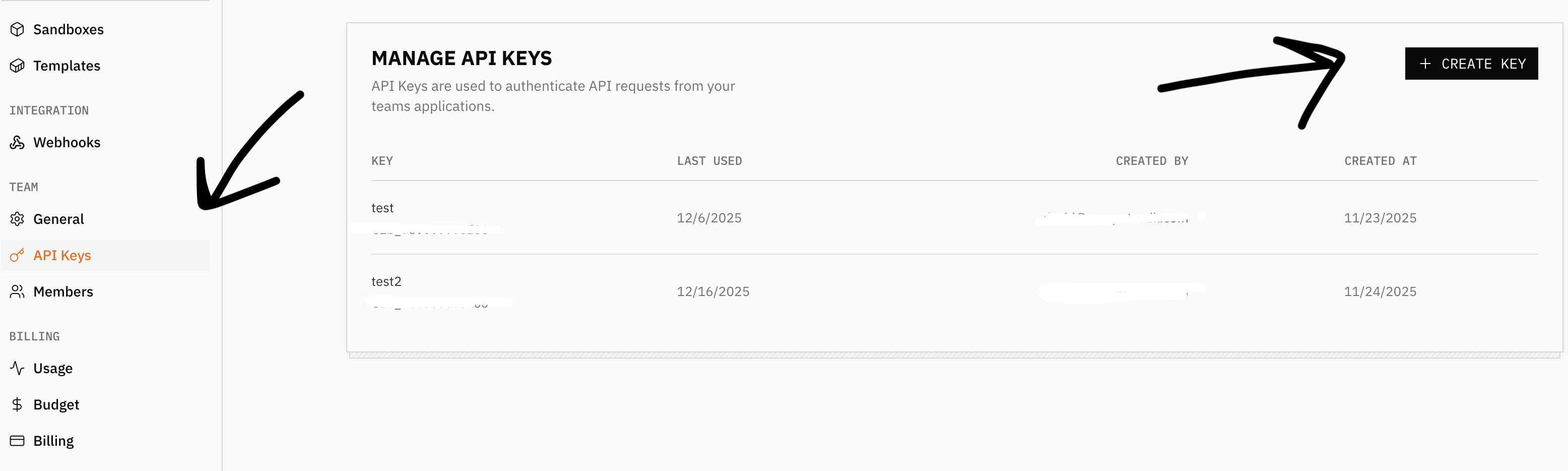
Save your API key in your .env file to the E2B_API_KEY variable.
E2B_API_KEY=your_e2b_api_keyInstall ComputeSDK and the E2B provider
ComputeSDK ships as a small core package plus one package per provider, so you only install what you use.
npm install computesdk @computesdk/e2bNow we'll move on to creating the actual sandbox logic
We need to create the API route to create the sandbox
Import the e2b factory from @computesdk/e2b and pass it your API key. compute.sandbox.create() provisions a sandbox on E2B.
// app/api/sandbox/route.ts
import { NextResponse } from 'next/server';
import { e2b } from '@computesdk/e2b';

const compute = e2b({
  apiKey: process.env.E2B_API_KEY,
});

export async function POST() {

  const sandbox = await compute.sandbox.create();

  return NextResponse.json({
    sandboxId: sandbox.sandboxId,
  });
}
Next, we'll edit the page.tsx file
We'll keep it simple and just add one button to run our sandbox test with.
Paste this code into Page.tsx
// app/page.tsx
'use client';

export default function Home() {
  const createSandbox = async () => {
    const res = await fetch('/api/sandbox', { method: 'POST' });
    const data = await res.json();
    console.log(data);
  };

  return (
    <div className="flex min-h-screen flex-col items-center justify-center p-24">
      <h1 className="mb-8 text-4xl font-bold">ComputeSDK Sandbox Test</h1>
      <button
        className="rounded bg-blue-500 px-4 py-2 font-bold text-white hover:bg-blue-700"
        type="button"
        onClick={createSandbox}
      >
        Create E2B sandbox
      </button>
    </div>
  );
}
Now, our first test
Click the button on the main page.
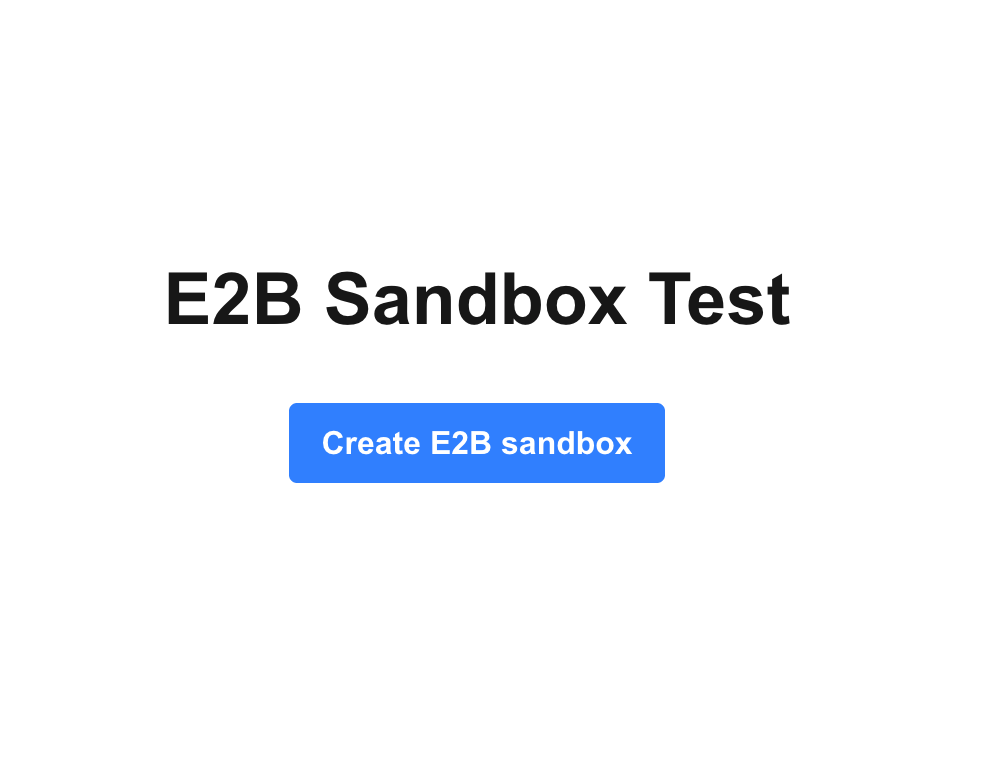
Then go to your E2B dashboard.
In your sandboxes -> list, you should see a new sandbox created!
Success!
Inside, you will be able to see your filesystem.
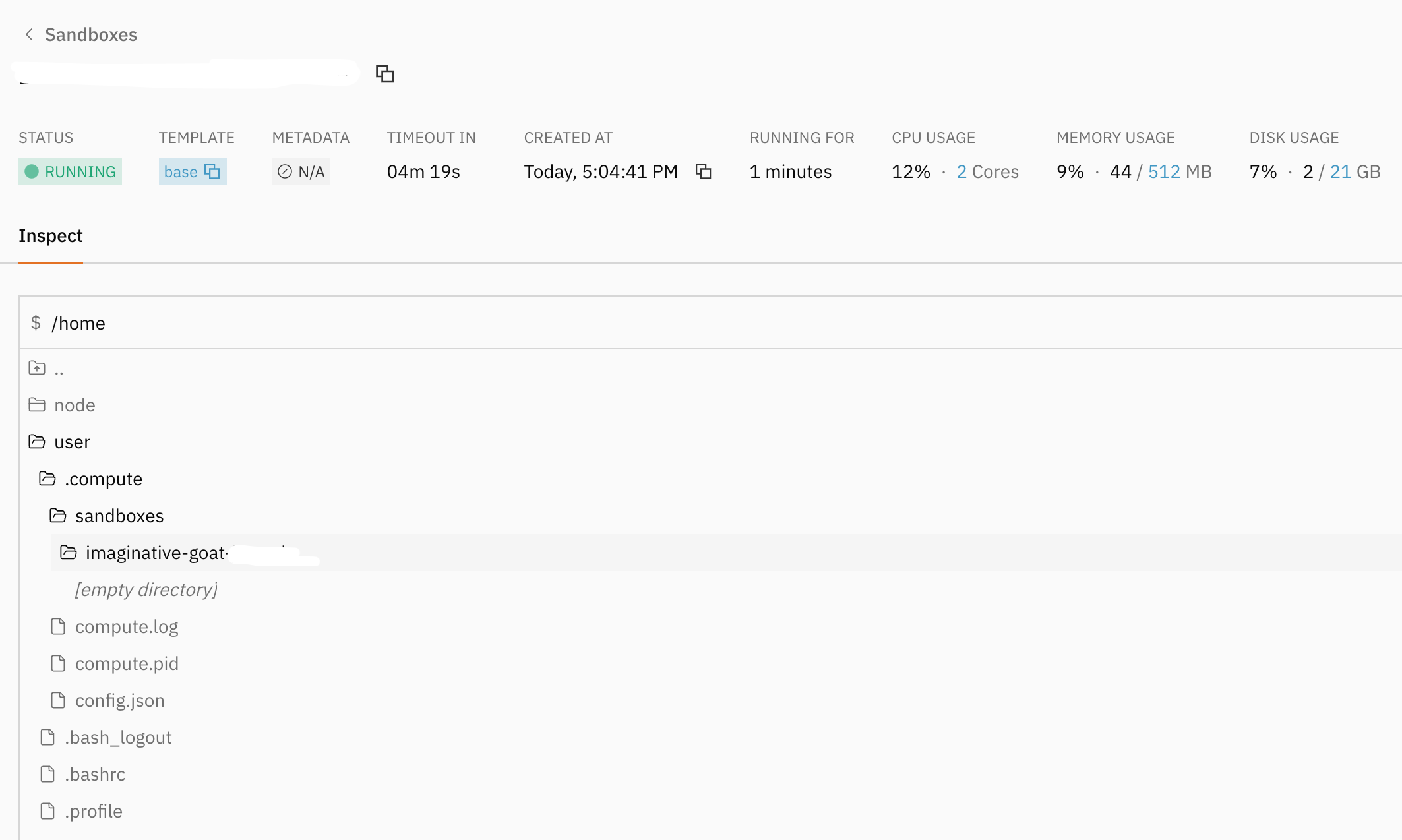
You've successfully created your first E2B sandbox
If you want to use another sandbox provider like Daytona or Modal, swap the import and factory call — install @computesdk/daytona and use import { daytona } from '@computesdk/daytona' instead, with that provider's own credentials. The rest of your code (runCommand, filesystem, getUrl) stays the same — that's the point of the universal Sandbox interface.
Making changes within the sandbox
Now, let's take the next step and run a primitive Vite app inside of our sandbox as an example of what we are able to do within the sandbox itself.
Update /api/sandbox/route.ts
Add the following to your route.ts file directly below this in your code:
const sandbox = await compute.sandbox.create();Create a basic Vite app inside our sandbox subfolder
// Scaffold Vite React app
await sandbox.runCommand('npm create vite@5 app -- --template react');
Use the writeFile method
Customize the vite.config.js so we can access the local dev server.
// Custom vite.config.js to allow access to sandbox at port 5173
  const viteConfig = `import { defineConfig } from 'vite'
  import react from '@vitejs/plugin-react'

  export default defineConfig({
    plugins: [react()],
    server: {
      host: '0.0.0.0',
      port: 5173,
      strictPort: true,
      hmr: false,
      allowedHosts: ['.e2b.app', '.e2b.dev', 'localhost', '127.0.0.1'],
    },
  })
  `;
  await sandbox.filesystem.writeFile('app/vite.config.js', viteConfig);
Run npm install using the runCommand method
cwd is an optional per-call override — if you don't pass one, commands run in whatever E2B's own sandbox default working directory is. We pass cwd: 'app' here simply because that's the subfolder we just scaffolded the Vite project into.
  // Install dependencies
  await sandbox.runCommand('npm install', {
    cwd: 'app',
  })
Start local dev server in the background with runCommand
  // Start dev server
  sandbox.runCommand('npm run dev', {
    cwd: 'app',
  });
Use the getUrl method to get a preview URL
  // Get preview URL
  const url = await sandbox.getUrl({ port: 5173 });
  console.log('previewUrl:', url)
The hostname getUrl() returns is E2B's own sandbox domain, not a ComputeSDK-branded one — check your terminal's console output for the exact value it prints for your sandbox.
Return the preview url along with the sandboxId
  return NextResponse.json({
    sandboxId: sandbox.sandboxId,
    url,
  });
Finished route.ts file
Your /app/api/sandbox/route.ts file should look like this now:
import { NextResponse } from 'next/server';
import { e2b } from '@computesdk/e2b';

const compute = e2b({
  apiKey: process.env.E2B_API_KEY,
});

export async function POST() {

  const sandbox = await compute.sandbox.create();

  // Create basic Vite React app
  await sandbox.runCommand('npm create vite@5 app -- --template react');

  // Custom vite.config.js to allow access to sandbox at port 5173
  const viteConfig = `import { defineConfig } from 'vite'
  import react from '@vitejs/plugin-react'

  export default defineConfig({
    plugins: [react()],
    server: {
      host: '0.0.0.0',
      port: 5173,
      strictPort: true,
      hmr: false,
      allowedHosts: ['.e2b.app', '.e2b.dev', 'localhost', '127.0.0.1'],
    },
  })
  `;
  await sandbox.filesystem.writeFile('app/vite.config.js', viteConfig);

  // Install dependencies
  await sandbox.runCommand('npm install', {
    cwd: 'app',
  })

  // Start dev server
  sandbox.runCommand('npm run dev', {
    cwd: 'app',
  });

  // Get preview URL
  const url = await sandbox.getUrl({ port: 5173 });
  console.log('previewUrl:', url)

  return NextResponse.json({
    sandboxId: sandbox.sandboxId,
    url,
  });
}
Testing Vite app inside sandbox
Now, after you click the "Create E2B Sandbox" button on your localhost homepage you should:
- See a new sandbox created inside your E2B dashboard.
- See a preview URL logged to your terminal.
- Finally, if you visit that URL you should see the boilerplate Vite React app running in your E2B sandbox!
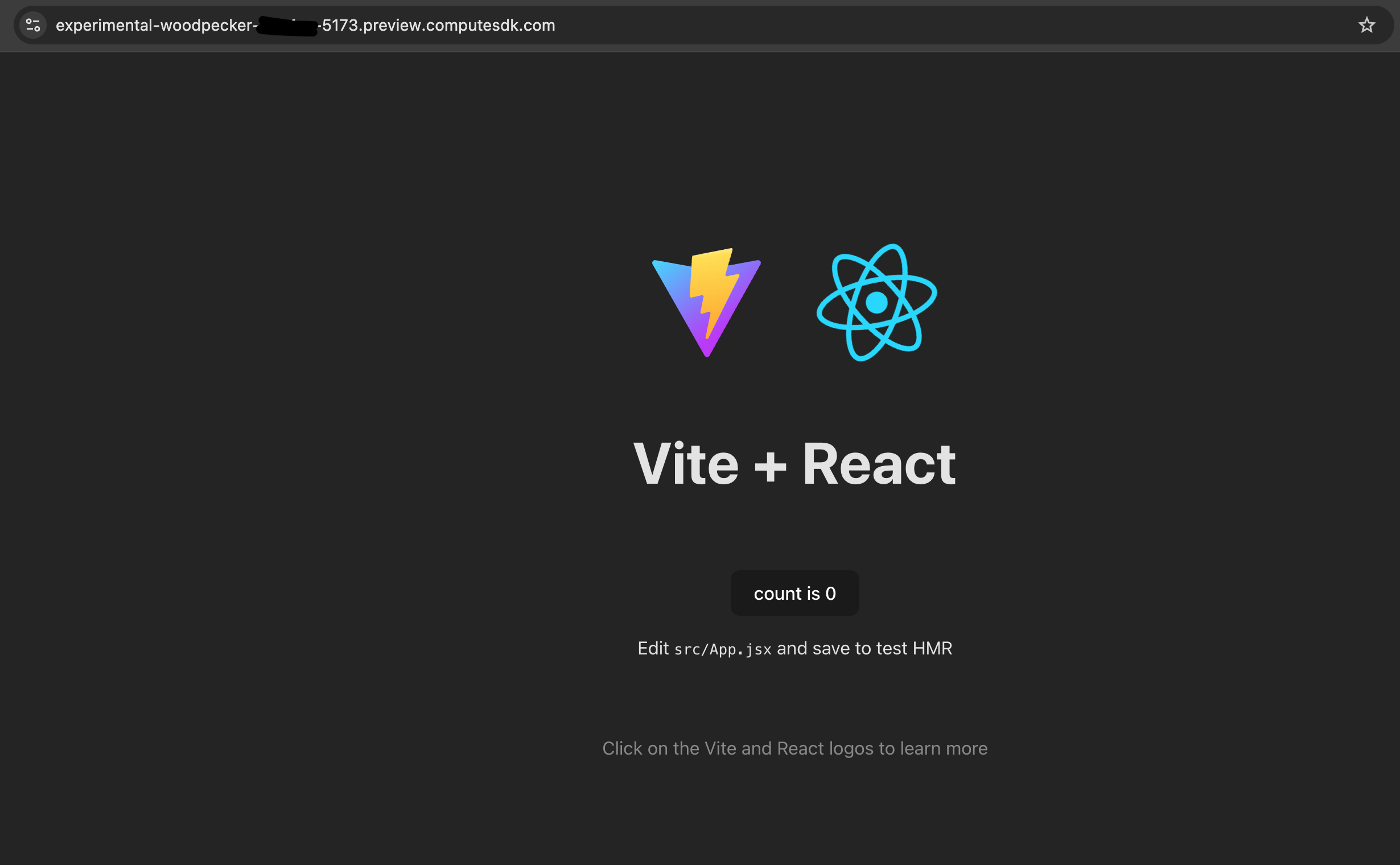
Congrats! You've successfully created your first sandbox application
You have done the following:
- created an E2B sandbox with ComputeSDK
- used our runCommand, writeFile, and getUrl methods (these work with any provider)
- ran a Vite app inside the sandbox
- accessed the app running within the sandbox through its preview URL
ComputeSDK makes it easy to standardize this process across providers.
So now that you've written this code in E2B, you can easily adjust this code to run in any sandbox provider.
Happy Sandboxing!
Have questions?
Want to be added as a provider?
Reach out to us at support@computesdk.com
Questions or thoughts on this post?
Join the conversation on X